MagoX.
MagoX. Wireless Mouse Charging Dock for Logitech and Razer Mice
MagoX. Wireless Mouse Charging Dock for Logitech and Razer Mice
Couldn't load pickup availability
MagoX. Wireless Mouse Charging Dock
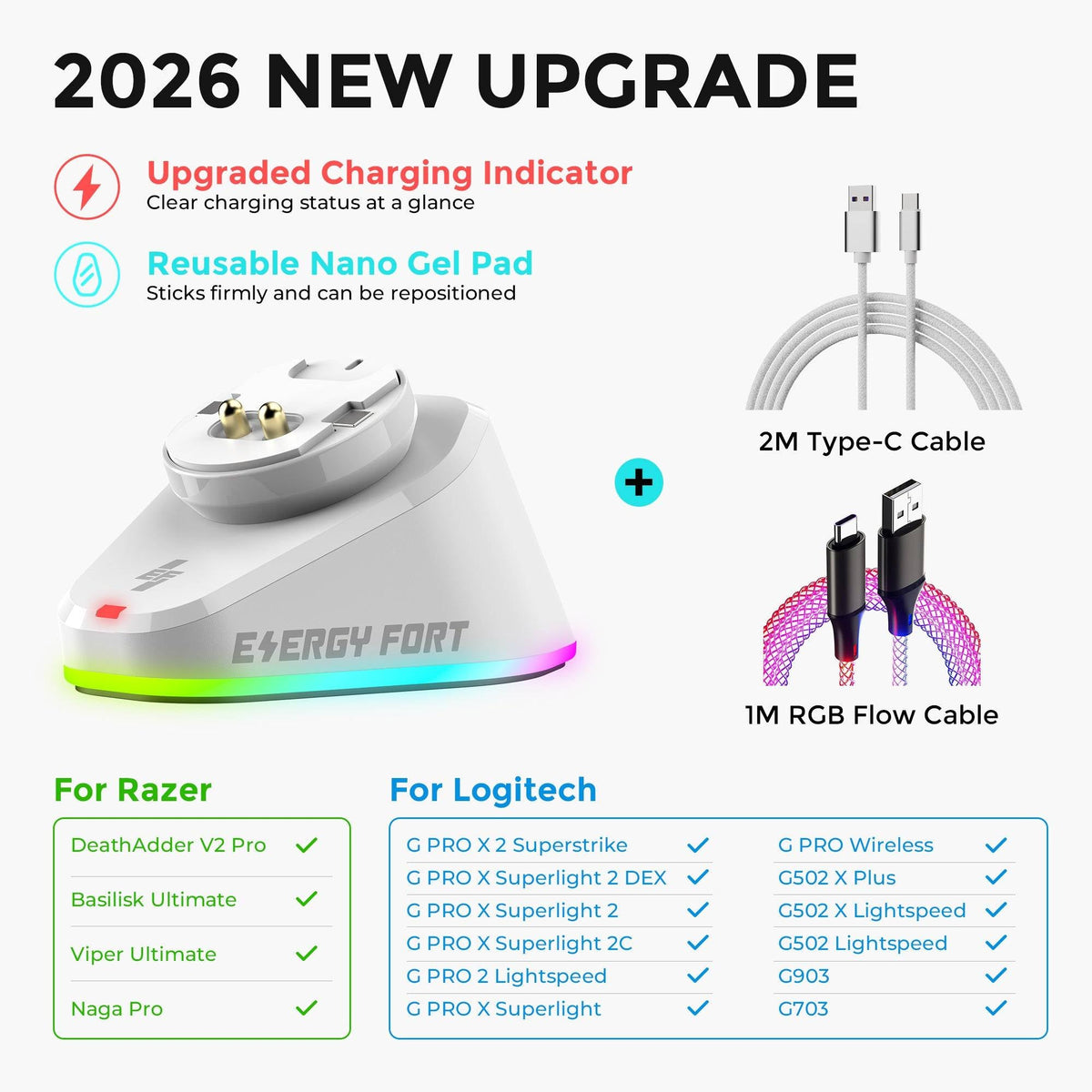
Upgrade your gaming desk setup with the MagoX. wireless mouse charging dock, designed for selected Logitech and Razer wireless mice. Featuring an upright RGB charging stand, dual USB 2.0 ports, and receiver storage, this compact dock helps keep your mouse charged and your workspace organized.
Key Features - Convenient upright charging for compatible wireless mice - RGB lighting for gaming and desktop setups - Dual USB 2.0 ports for supported USB accessories - Integrated mouse receiver storage - Compact design for a cleaner gaming or office desk
Check Compatibility Before Ordering
This is not a universal wireless mouse charger. Confirm your exact mouse model and charging compatibility before purchase. Refer to the compatible model list below.
Model listed by MagoX.: Logitech G PRO X3 SUPERSTRIKE. Check the exact model against the current compatibility list; a Logitech or Razer brand name alone does not establish fit.
Best for: users who want a cleaner gaming or work setup and prefer an upright charging stand instead of plugging a cable directly into the mouse.
Check Compatibility First
This is not a universal mouse charger. Confirm your exact mouse model before ordering.
- Logitech G PRO X3 SUPERSTRIKE
- Logitech G PRO X Superlight
- Logitech G PRO X Superlight 2 / 2C
- Logitech G PRO X Superlight 2 DEX / SE
- Logitech G PRO X2 SUPERSTRIKE
- Logitech G502 Lightspeed
- Logitech G502 X Lightspeed
- Logitech G502 X Plus
- Logitech G703
- Logitech G903
- Logitech G Pro Wireless
- Logitech G Pro 2 Lightspeed
- Razer Basilisk Ultimate
- Razer DeathAdder V2 Pro
- Razer Naga Pro
- Razer Viper Ultimate
Logitech Setup: No Extra Charging Module Required
For a Logitech model listed below, connect the dock to a suitable USB power source, remove the original removable bottom cover, and park the mouse directly on the dock with the contacts aligned. No additional conversion module or replacement puck is required. Keep the original cover. Open G HUB to check charging; RGB lighting and receiver operation alone do not prove that the battery is charging. These Logitech instructions do not establish installation or compatibility for every Razer mouse.
Why Choose This Dock
- Upright charging: keeps the mouse organized and easy to pick up.
- RGB lighting: 7 lighting effects for gaming desk setups.
- Power-off memory: retains the previous lighting mode after power interruption or restart.
- Dual USB 2.0 ports: connect a mouse receiver or other USB devices.
- Receiver storage: built-in storage helps keep compatible receiver modules organized.
- Non-slip base: helps keep the dock stable during daily use.
What’s in the Box
- Mouse Charging Dock × 1
- 2 m USB-C to USB-C Data Cable × 1
- User Manual × 1
- RGB Flow Cable versions additionally include a 1 m USB-C to USB-C flow-light cable
Product FAQ
Do I need an extra charging module for my Logitech mouse?
For a compatible Logitech model listed above, remove the original bottom cover and place the mouse directly on the dock with the contacts aligned. No extra conversion module is needed. Store the original cover in the storage recess underneath the dock.
Is a mouse receiver included, and what do the USB ports do?
No wireless mouse receiver is included. Connect your existing receiver to a USB 2.0 data port on the dock. The ports provide a USB connection; they do not turn the dock into a replacement wireless receiver.
Why does charging pause below 100% or the mouse charging light stay off?
MagoX. has observed charging pauses around 80–90% on compatible Logitech mice; the exact level varies and is not a guaranteed dock-controlled cutoff. A dark mouse indicator alone does not establish a fault. Check battery and charging status in Logitech G HUB.
Can it charge with the mouse off or the computer shut down?
Compatible mice can charge switched on or off, but a switched-off mouse cannot report live status to G HUB. Charging after computer shutdown depends on whether its USB port continues supplying power.
How do I control the RGB lighting?
Press and hold the lightning icon on the front to turn the RGB lighting on or off. Short presses cycle through the lighting modes.
What is included with each version?
The standard version includes one dock, one 2 m USB-C to USB-C data cable and one user manual. An RGB Flow Cable version adds one 1 m USB-C to USB-C flow-light cable. Choose the version shown in the product options.
What should I check if the mouse does not charge?
Confirm the exact mouse model, USB power, cable connection and contact alignment. Disconnect power before cleaning dirty contacts and allow them to dry before reconnecting. Check charging again in G HUB; contact support with your model and setup if the issue continues.
Can I use it while gaming?
This is a parked upright charger, not a charging mousepad. Place the mouse on the dock between gaming or work sessions.
Share